

Every official “manual” page for this keyboard is just a download button. This isn’t that. Everything below is pulled directly from the official manual for the Epomaker x Aula F75, the exact tri-mode gasket-mount unit I already reviewed in full here, organized into an actual reference you can use without opening a PDF.
- Setting Up Modes and Connectivity
- Full FN Key and Shortcut Reference Table
- Mac Mode Quirks: Fixing Swapped Alt/Win Keys
- Changing RGB Colors and Lighting Effects
- Knob Functions: Gaming Mode vs Office Mode
- Battery, Charging, and Checking Battery Level
- Factory Reset and Basic Troubleshooting
- Swapping Switches and Keycaps
- FAQ
- Wrap-Up
One scope note before we start: this covers the standard Epomaker x Aula F75. Aula also sells an F75 Max, F75 HE (hall effect), F75 Ultra, and F75 Master Edition, and some shortcuts differ between those variants. If a combo below doesn’t match what your board does, double-check which F75 you actually have.
This guide covers shortcuts and hardware controls only. If you’re looking for driver/software setup and macro programming, that’s a big enough topic to deserve its own guide, coming separately.
Setting Up Modes and Connectivity
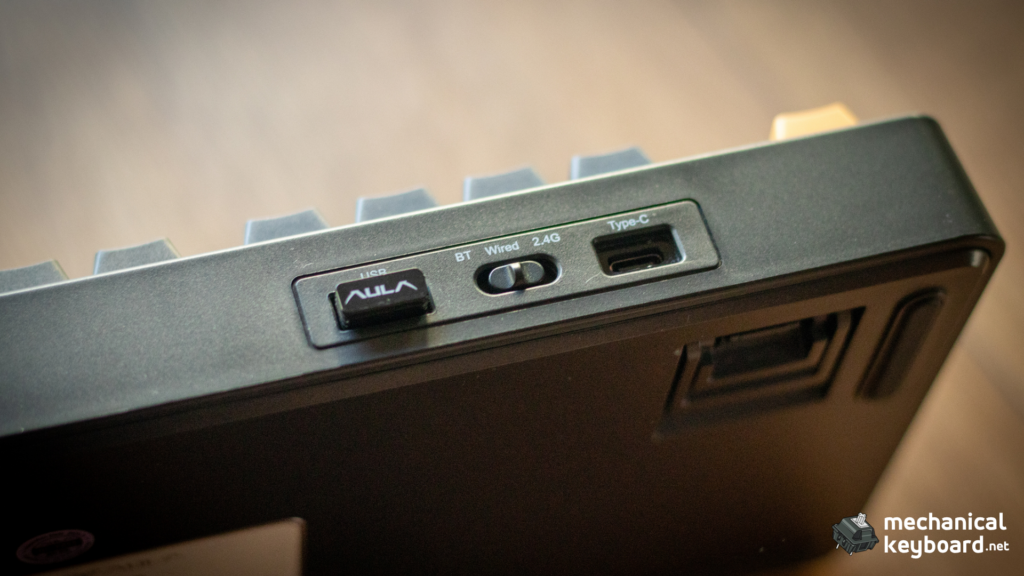
The F75 runs in three connection modes, switched via the physical toggle on the board: Wired (USB-C), 2.4GHz (included dongle), and Bluetooth (up to 3 paired devices). Separately, FN+Q / FN+W / FN+E set the system mode (Android / Windows / Mac), which changes what the F-row and FN+F-row keys actually do, more on that below.
Wired mode: Flip the switch to the middle position and plug in. The “4$” key lights white for 2 seconds to confirm the connection.
2.4GHz pairing: Flip the switch to 2.4G, the ~ key blinks. Hold FN+~ for 3-5 seconds until it blinks fast green, then insert the dongle. Connection is confirmed when the light stops blinking.

Bluetooth pairing: Flip the switch to BT. Hold FN+1! (or FN+2@ / FN+3#, depending which of the 3 device slots you want) for 3-5 seconds until it blinks fast blue. On your device, search for “AULA-F75 3.0/5.0” and connect. Once paired, the light stops flashing. Short-press FN+1!/2@/3# any time afterward to switch between your 3 paired devices.
Full FN Key and Shortcut Reference Table
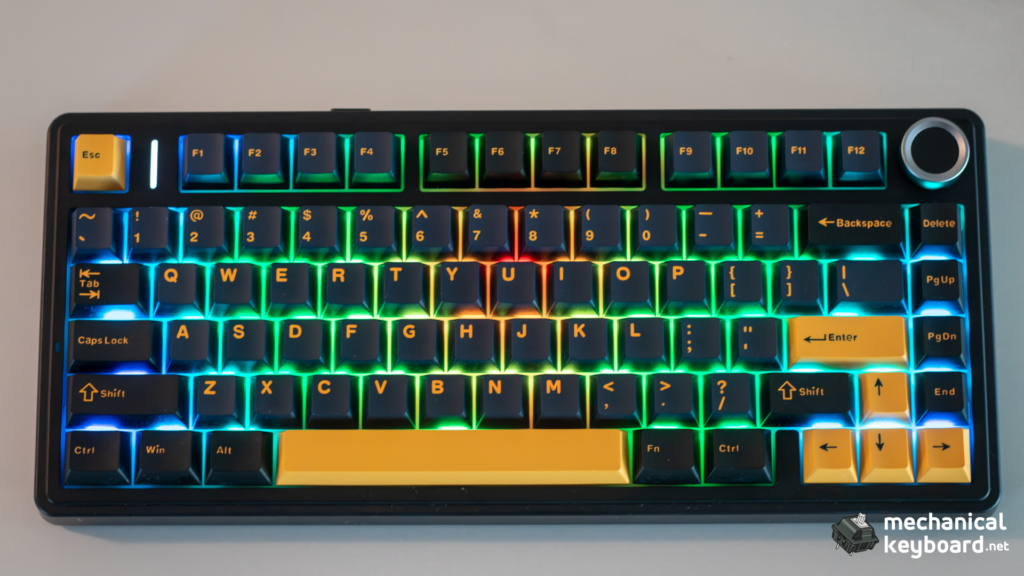
The F-row (F1-F12) and the FN+F-row layer both change behavior depending on which system mode you’re in (Android/Windows/Mac). This trips people up constantly, here’s the full breakdown.
F1-F12 (default row):
| Key | Android Mode | Windows Mode | Mac Mode |
|---|---|---|---|
| F1 | Screen Brightness − | F1 | Screen Brightness − |
| F2 | Screen Brightness + | F2 | Screen Brightness + |
| F3 | Switch Windows | F3 | Switch Windows |
| F4 | Desktop | F4 | Desktop |
| F5 | Backlight Brightness − | F5 | Backlight Brightness − |
| F6 | Backlight Brightness + | F6 | Backlight Brightness + |
| F7 | Previous Track | F7 | Previous Track |
| F8 | Play/Pause | F8 | Play/Pause |
| F9 | Next Track | F9 | Next Track |
| F10 | Mute | F10 | Mute |
| F11 | Volume − | F11 | Volume − |
| F12 | Volume + | F12 | Volume + |
FN+F1 through FN+F12 (secondary layer):
| Key | Android Mode | Windows Mode | Mac Mode |
|---|---|---|---|
| FN+F1 | F1 | Home Page | F1 |
| FN+F2 | F2 | F2 | |
| FN+F3 | F3 | Switch Windows | F3 |
| FN+F4 | F4 | Explorer | F4 |
| FN+F5 | F5 | Backlight Brightness − | F5 |
| FN+F6 | F6 | Backlight Brightness + | F6 |
| FN+F7 | F7 | Previous Track | F7 |
| FN+F8 | F8 | Play/Pause | F8 |
| FN+F9 | F9 | Next Track | F9 |
| FN+F10 | F10 | Mute | F10 |
| FN+F11 | F11 | Volume − | F11 |
| FN+F12 | F12 | Volume + | F12 |
Other core shortcuts:
| Shortcut | Function |
|---|---|
| FN+ESC (hold 3s) | Factory reset |
| FN+Q | Android mode |
| FN+W | Windows mode |
| FN+E | Mac mode |
| FN+B | Check battery |
| FN+WIN (Windows mode only) | Lock the Windows key |
| FN+U (Windows mode only) | Print Screen |
| FN+I (Windows mode only) | Scroll Lock |
| FN+O (Windows mode only) | Pause |
| FN+DEL (Windows mode only) | Insert |
| FN+END (Windows mode only) | Home |
| FN+L_SHIFT | Charging indicator light effect |
Mac Mode Quirks: Fixing Swapped Alt/Win Keys
If your Alt and Windows keys feel like they’re doing the wrong thing, you’re almost certainly in the wrong system mode for your OS, not a broken keyboard. Press FN+E to switch into Mac mode (which remaps those keys to match macOS’s Option/Command layout) or FN+W for Windows. Holding FN alone at any time lights up the key showing your current mode, a quick way to check without guessing.
There’s no separate “FN Lock” toggle documented for this board the way some keyboards have one, mode switching (FN+Q/W/E) is how you change behavior here, not a lock/unlock function.
Changing RGB Colors and Lighting Effects
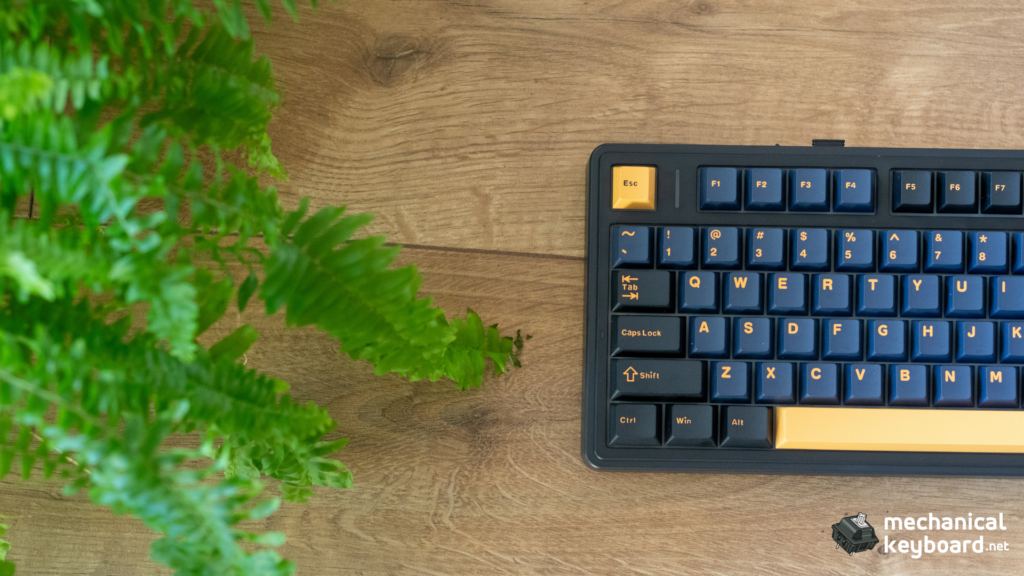
This is the shortcut cluster people search for constantly, and it’s genuinely simple once you know where to look:
- FN+\| (backslash) — cycle through backlight effects, or turn lighting off entirely
- FN+TAB — cycle through backlight colors
- FN+↑ / FN+↓ — increase / decrease backlight brightness
- FN+← / FN+→ — decrease / increase effect speed
That’s the complete lighting control set. If you want per-key custom RGB mapping rather than the built-in presets, that requires the software, which is outside the scope of this guide.
Knob Functions: Gaming Mode vs Office Mode
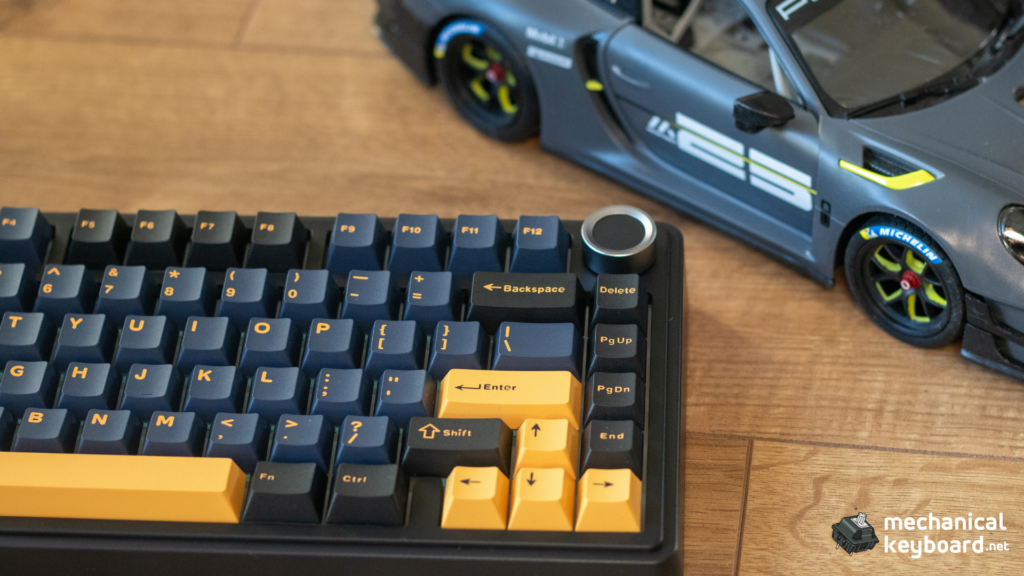
Press and hold the knob for 3-5 seconds to toggle between two behavior modes:
Gaming Mode (knob light keeps breathing):
- Short press: toggle backlight effects
- Rotate right: backlight brightness +
- Rotate left: backlight brightness −
Office Mode (knob light stays solid on):
- Short press: mute
- Rotate right: volume +
- Rotate left: volume −
If your knob seems to be controlling the wrong thing, this mode toggle is almost always the fix, check the light behavior (breathing vs solid) to confirm which mode you’re actually in before assuming it’s broken.
Battery, Charging, and Checking Battery Level
Checking battery: In 2.4G or Bluetooth mode, press and hold FN+B. The number row (1-0) lights up green to represent remaining charge, fewer lit keys as the battery drains, switching to red when low.
Charging: Connect via the included USB-C cable. The board has a 4,000mAh battery, on the smaller side for a tri-mode board this size, so expect shorter runtime with RGB running heavily compared to boards with larger batteries. To maximize battery life in wireless mode, lower brightness or turn lighting off entirely (FN+\|).
Factory Reset and Basic Troubleshooting
Hold FN+ESC for 3 seconds to reset the keyboard to factory settings. This is the fix for most “keys doing the wrong thing” or “board not responding correctly” situations, more often than not, it’s a mode mismatch (wrong system mode, wrong connection mode) rather than an actual hardware fault, so try switching modes correctly first and factory reset second.
Swapping Switches and Keycaps
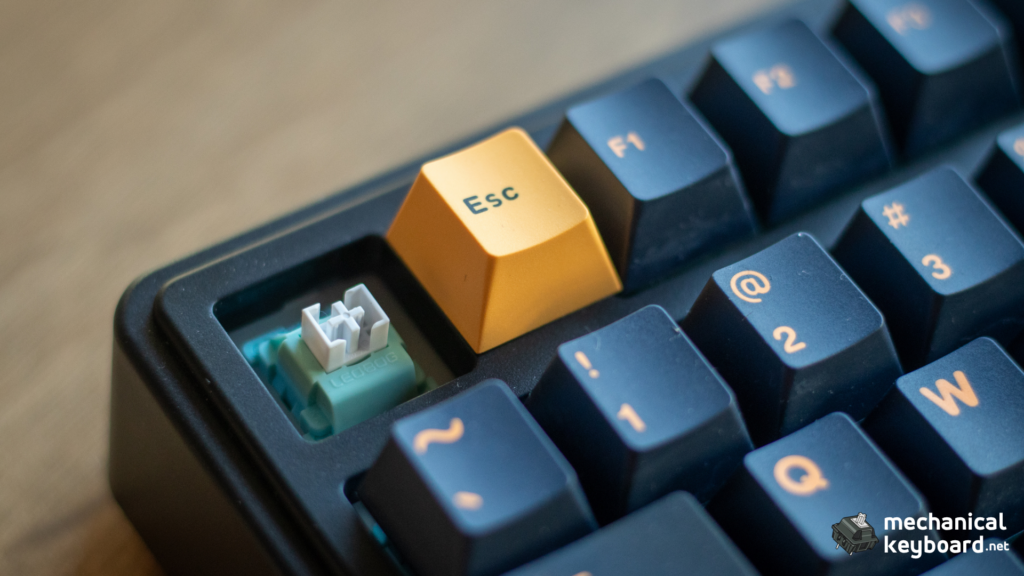
The F75 uses a 3/5-pin hot-swap PCB, so switches come out and go back in without any soldering. The board ships with a combined keycap/switch puller tool.
To remove a switch: align the puller vertically at the center of the switch, apply firm but gentle pressure until it releases from the plate, then pull straight up.
To install: check the pins are straight and clean, align the switch vertically with the Gateron logo facing north, press down until you hear/feel a click confirming it’s seated, then test the key.
Be gentle, bent pins are the most common way people damage a switch during a swap. Epomaker has a full visual DIY guide linked via QR code in the manual if you want the complete walkthrough with more detail than fits here.
FAQ
Does the Aula F75 have software? Yes, but it’s a separate topic from this guide. Every shortcut and control covered above works without installing anything.
How long does the Aula F75 battery last? It has a 4,000mAh battery. Expect shorter runtime with RGB lighting running heavily, this is a smaller battery than some competing tri-mode boards, so managing brightness matters if you rely on wireless use.
What switches does the Aula F75 use? This varies by the specific switch option you ordered, the board uses a standard 3/5-pin hot-swappable socket, so switches can be swapped regardless of which came stock.
How do I factory reset the Aula F75? Hold FN+ESC for 3 seconds.
Why are my Alt and Windows keys swapped? You’re in the wrong system mode for your OS. Press FN+W for Windows or FN+E for Mac to fix it.
Wrap-Up
That’s the complete shortcut and control set for the Epomaker x Aula F75, straight from the official manual, organized so you don’t have to dig through a PDF to find one combo. If you haven’t read the full hands-on review yet, it’s here.