

If your keyboard types two letters when you press a key once, you may be experiencing keyboard chatter, also known as key chatter or keyboard chattering.
- Quick Fix: What to Do When Your Keyboard Types Twice
- How to Test Your Keyboard for Double Typing
- What Is Keyboard Chatter?
- What Causes a Mechanical Keyboard to Double Type?
- Fix 1: Reconnect the Keyboard
- Fix 2: Check Whether One Key or Multiple Keys Are Affected
- Fix 3: Swap the Switch on a Hot-Swappable Keyboard
- Fix 4: Clean Around the Affected Switch
- Fix 5: Replace the Faulty Switch
- Fix 6: Update the Keyboard Firmware
- Fix 7: Adjust Debounce Time If Supported
- How to Fix Keyboard Double Typing on Windows 11
- How to Fix Keyboard Double Typing on Mac
- Keyboard Double Typing vs Normal Key Repeat
- Can Keyboard Chatter Be Fixed With Software?
- Does Keyboard Debounce Affect Gaming?
- Can Hall Effect Keyboards Double Type?
- Can Optical Keyboards Have Double-Typing Problems?
- Does Keyboard Chatter Affect Gaming?
- When Should You Replace the Keyboard?
- Keyboard Double Typing Troubleshooting Checklist
- Final Thoughts
For example, you type keyboard, but the result is keyboaard. Or you press the spacebar once, and two spaces appear.
On a traditional mechanical keyboard, this can happen when a switch generates unwanted electrical transitions that the keyboard’s debounce system fails to filter. However, faulty switches are not the only possible cause. Firmware, software, key remapping, and connection problems can produce similar symptoms.
The fastest way to diagnose keyboard double typing is to identify the affected key, test it on another device, and, if your keyboard is hot-swappable, exchange its switch with a known-working one.
You usually do not need to replace the entire keyboard.
Quick Fix: What to Do When Your Keyboard Types Twice
Follow these steps in order:

| Step | What to do | What it tells you |
|---|---|---|
| 1 | Press the affected key repeatedly in a text editor | Confirms the double-typing symptom |
| 2 | Test the same key in another application | Helps rule out application-specific problems |
| 3 | Reconnect the keyboard and try another USB port | Checks for connection issues |
| 4 | Test on another computer | Helps distinguish keyboard faults from computer-specific problems |
| 5 | Swap the suspected switch if your keyboard is hot-swappable | Identifies whether the fault follows the switch |
| 6 | Check firmware, macros, and supported debounce settings | Investigates configuration problems |
| 7 | Replace a confirmed faulty switch | Fixes many switch-related double-input problems |
If only one key is double typing, start with that key rather than changing settings for the entire keyboard.
If several unrelated keys suddenly start repeating letters, software, firmware, or a broader hardware problem becomes more likely.
How to Test Your Keyboard for Double Typing
Before making any changes, confirm whether a single physical press is registering more than once.
Method 1: Test in Notepad or a Text Editor
This is the easiest way to check for keyboard chatter without installing anything.
- Open Notepad on Windows, TextEdit on Mac, or another plain text editor.
- Identify the key that appears to be double typing.
- Press it once and release it completely.
- Repeat this 30 to 50 times, using deliberate individual presses.
- Watch for extra characters that appear after a single press.
For example, imagine testing the letter E.
You deliberately press it five times, but your keyboard produces:
eeeeee
Six letters from five physical presses indicate an unexpected extra input.
To make occasional errors easier to notice, place a space between individual test presses:
e e e ee e e e
If one press unexpectedly produces ee, investigate further.
Important: Do not hold the key down during this test. Holding a key normally activates the operating system’s key-repeat function, which is different from keyboard chatter.
Method 2: Use a Keyboard Chatter Tester
An online keyboard chatter tester can help identify suspiciously repeated keyboard events. These tools measure the timing between key events to highlight possible double inputs. However, they cannot directly detect electrical contact bounce inside a switch, so results should be treated as diagnostic clues rather than definitive proof.
A more detailed tester can record:
- Individual key presses
- The number of events received for each key
- The time between consecutive key events
- Repeated inputs that occur unusually close together
- Keys that may require further investigation
However, an online keyboard tester has limitations.
A browser only receives keyboard events passed to it by the operating system. It cannot directly inspect a switch’s electrical contacts.
Browsers also provide a keyboard event property called repeat, which helps identify normal auto-repeat when a key is held down.
A very short interval between two events may indicate a problem, but it does not conclusively prove that a physical switch is defective.
For that reason, suspicious results should always be confirmed with another test, ideally by swapping the switch or testing the keyboard on another device.
You can read more about browser keyboard events in the MDN KeyboardEvent documentation.
Method 3: Test on Another Computer
Connect the keyboard to another computer if possible.
Test the same key using the same method.
If the problem continues on multiple computers, the keyboard hardware or its firmware becomes more likely to be responsible.
If the problem occurs only on one computer, investigate its software, drivers, accessibility settings, and input configuration before replacing switches.
Method 4: Test Different Connection Modes
If your keyboard supports multiple connection methods, compare them.
For example:
- Wired USB
- 2.4 GHz wireless
- Bluetooth
If the keyboard double types only over Bluetooth but works normally when connected by USB, that is a useful diagnostic clue.
It does not completely rule out a switch fault, but it means the connection, firmware, and wireless configuration deserve attention before hardware replacement.
What Is Keyboard Chatter?
Keyboard chatter occurs when a single deliberate keypress causes multiple unintended key registrations.
For example:
| Intended input | Actual output |
|---|---|
| hello | heello |
| keyboard | keyboaard |
| gaming | ggaming |
| switch | swittch |
| mechanical | mechhanical |
Keyboard chatter can happen occasionally or frequently.
Some users notice double typing only after using their keyboard for several months or years. Others encounter it on a relatively new keyboard.
The problem may affect a single key or several keys.
On traditional contact-based mechanical switches, chatter is often connected to a phenomenon called contact bounce.
What Is Contact Bounce?
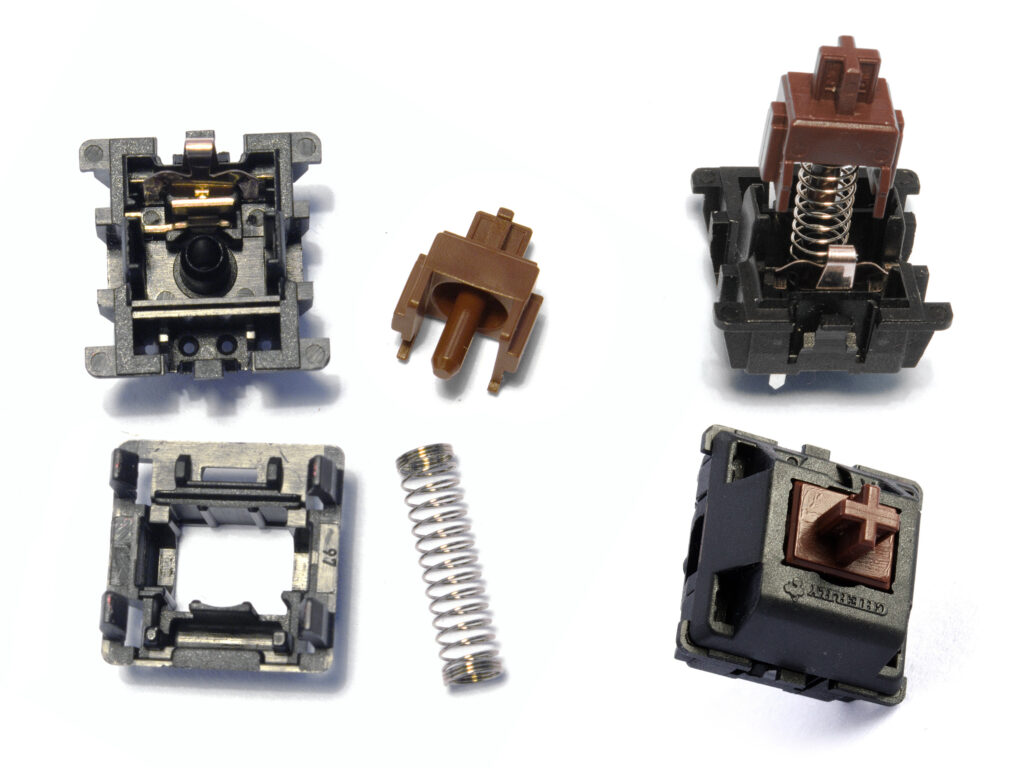
Inside a conventional mechanical keyboard switch, electrical contacts close when you press the key.
However, those contacts do not necessarily move from an open to a closed state in one perfectly clean electrical transition.
Instead, the contacts can briefly make and break the electrical connection while settling.
A simplified representation looks like this:
OFF → ON → OFF → ON → OFF → ON
Even though you physically pressed the key only once.
This behaviour is known as contact bounce.
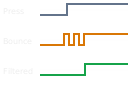
Contact bounce is normal in traditional mechanical switches. It does not automatically mean the switch is defective.
Modern keyboard firmware uses debouncing to prevent those rapid electrical transitions from creating unwanted additional inputs.
What Is Keyboard Debounce?
Keyboard debounce is the process of filtering rapid switch-state changes so that one physical keypress is interpreted as one intended activation.
Without effective debouncing, the controller could interpret electrical contact bounce as multiple keypresses.
QMK, the open-source keyboard firmware used by many custom keyboards, supports several debounce algorithms.
Its default debounce time is 5 milliseconds, although this can be changed in a keyboard’s firmware configuration.
QMK also distinguishes between algorithms that report a change immediately and temporarily ignore further transitions, and algorithms that wait for the signal to settle.
That distinction is important because debounce time does not always translate directly into the same amount of additional input latency.
For a more detailed technical explanation, see the official QMK documentation on contact bounce and debouncing.
What Causes a Mechanical Keyboard to Double Type?
Several different problems can produce the same repeated-letter symptom.
1. A Worn or Faulty Mechanical Switch
A failing switch is one of the first things to investigate when only one key is affected.
Traditional mechanical switches contain moving parts and electrical contacts.
Over time, those contacts can become contaminated, worn, or damaged.
A switch may then produce inconsistent signals or unwanted transitions that the keyboard’s firmware does not filter successfully.
This is especially worth investigating when a keyboard previously worked normally but one key has started registering additional presses.
However, do not assume that every double-typing problem is a faulty switch.
The goal is to isolate the cause before replacing anything.
2. Dust, Dirt, or Liquid Contamination
Dust, hair, crumbs, and other debris can accumulate around keyboard switches.
Contamination may interfere with mechanical movement or electrical contacts.
If the problem began after a spill, liquid contamination or corrosion should also be considered.
Remove the affected keycap and inspect the area around the switch.
If you find loose dust or debris, carefully clean the accessible surfaces using an appropriate electronics brush or manufacturer-approved cleaning method.
Avoid spraying random cleaners or pouring liquids into switches. Some products may damage switch components, lubricants, or surrounding electronics.
If liquid entered the keyboard, disconnect it and follow the manufacturer’s service guidance before powering it again.
3. Firmware or Debounce Problems
Sometimes the switches are working correctly, but the keyboard is interpreting their signals incorrectly.
Possible causes include:
- Incorrect firmware configuration
- A firmware bug
- Unsupported or incorrect firmware
- Debounce settings that are unsuitable for the switches
- Problems introduced after a firmware update
If many keys begin behaving incorrectly at roughly the same time, firmware is worth investigating.
4. Damaged Hot-Swap Sockets or PCB Connections
A keyboard can continue double typing even after a switch is replaced.
In that situation, investigate the connection between the switch and the keyboard’s circuit board.
Possible problems include:
- A damaged hot-swap socket
- Loose electrical connections
- Bent switch pins
- Damaged PCB traces
- Defective solder joints
- Liquid damage
A known-working switch behaving incorrectly in one specific socket is an important clue.
5. Macros, Key Remapping, or Software Conflicts
Not every repeated character originates inside the switch.
Keyboard configuration software can assign multiple actions to a single key.
If a macro is accidentally assigned to a key, one press may produce repeated characters or commands.
Check your active keyboard profile and any macro or remapping applications.
If you use VIA, our complete guide to VIA keyboard software explains how to inspect key assignments, layers, and macros.
Also check whether any text expansion, automation, or gaming software is changing keyboard behaviour.
6. Connection or Operating System Issues
A keyboard that behaves incorrectly only on one computer may have a software or connection problem.
Possible causes include USB issues, wireless configuration problems, accessibility settings, or conflicting input utilities.
These problems can resemble chatter without necessarily involving a defective switch.
How to Fix Keyboard Double Typing
Once you’ve identified the affected key, use the following troubleshooting process.
Fix 1: Reconnect the Keyboard
Start with the simplest fix.
Disconnect the keyboard, wait a few seconds, and reconnect it.
If you’re using a USB hub, connect the keyboard directly to the computer.
Try another USB port.
Restart the computer if necessary.
Then repeat the test using the same key.
If the problem disappears, a temporary connection or software issue may have been responsible.
Fix 2: Check Whether One Key or Multiple Keys Are Affected
This distinction helps narrow down the likely cause.
| Symptom | What to investigate first |
|---|---|
| One key double types | Individual switch |
| Two nearby keys misbehave | Switches, contamination, or socket area |
| Many unrelated keys double type | Firmware, software, controller, or connection |
| Only Bluetooth causes problems | Wireless connection and configuration |
| Only one application has the problem | Application settings, macros, or input software |
| Problem follows a switch after swapping | Suspected faulty switch |
| Problem stays in one socket after swapping | Socket, PCB, firmware, or key mapping |
These are diagnostic clues, not definitive diagnoses.
For example, several switches can fail independently, and one incorrectly configured macro can affect only a single key.
Fix 3: Swap the Switch on a Hot-Swappable Keyboard
If you own a hot-swappable mechanical keyboard, this is one of the most useful tests you can perform.
You do not need expensive tools or a full keyboard teardown.
You’ll need:
- A compatible switch puller
- Your keyboard
- A known-working switch or compatible spare switch
Step 1: Disconnect the keyboard.
Always turn off or unplug the keyboard before removing switches unless the manufacturer explicitly instructs otherwise.
Step 2: Remove the affected keycap.
Use a keycap puller and gently lift the keycap.
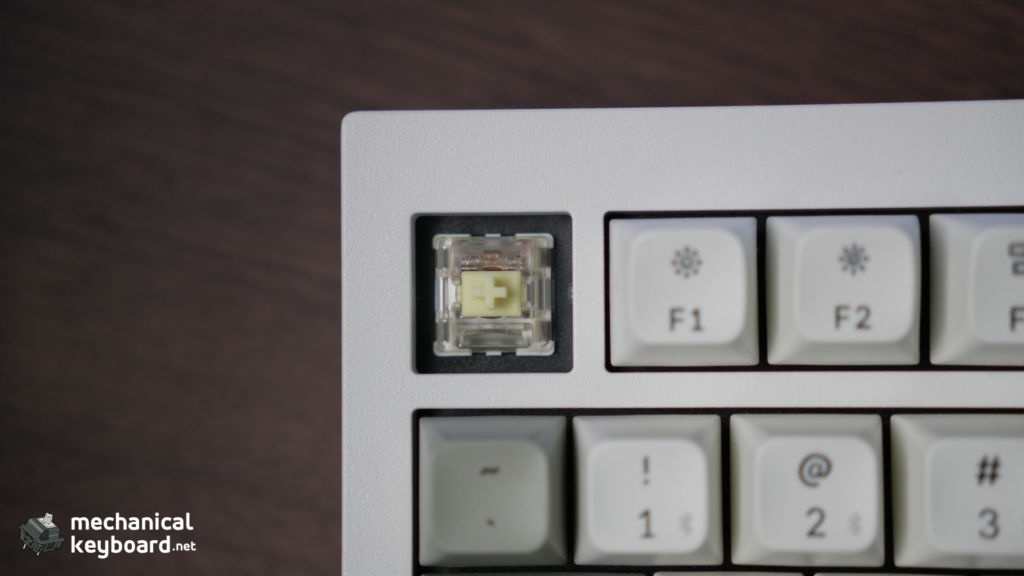
Step 3: Remove the suspected switch.
Use the switch puller to release the switch clips and lift the switch from the socket.
Do not force it.
Step 4: Exchange the switch with a known-working one.
For example, if the E key is double typing, exchange its switch with one from a less frequently used key.
Make sure both switches are compatible with the sockets.
Step 5: Reconnect and test both key positions.
Now observe what happens.
Result A: The Double Typing Moves With the Switch
Suppose the E key originally double typed.
You move its switch to Page Down.
Now E works normally, but Page Down begins double typing.
This strongly suggests that the original switch is responsible.
Replacing it is the next logical step.
Result B: The Double Typing Stays on the Original Key
Suppose you move the E switch, but E still double types with a known-working switch installed.
The original switch is now less likely to be responsible.
Investigate the hot-swap socket, PCB connection, firmware, or key mapping.
This switch-swapping process is also recommended in Keychron’s official troubleshooting guidance for double-clicking keys.
Note: If your keyboard is soldered rather than hot-swappable, do not attempt to pull out its switches with a switch puller. Soldered switches require a different removal procedure.
Fix 4: Clean Around the Affected Switch
If you’ve identified a problem key, inspect it for visible debris.
- Disconnect the keyboard.
- Remove the keycap.
- Examine the area around the switch.
- Remove loose debris using an appropriate soft brush or carefully used compressed air.
- Reinstall the keycap.
- Reconnect the keyboard and test it again.
If contamination is inside the switch, external cleaning may not resolve it.
Depending on the switch design, internal disassembly or replacement may be required.
For a hot-swappable keyboard, replacing one confirmed faulty switch is often simpler than attempting an extensive repair.
Fix 5: Replace the Faulty Switch
If the double-typing problem follows a switch when you move it, replacement is usually the most practical solution.
On a hot-swappable mechanical keyboard, you can replace that individual switch without replacing the entire keyboard.
Before installing a replacement:
- Confirm that the switch is compatible with your keyboard.
- Check whether the PCB accepts the switch’s pin configuration.
- Make sure the switch pins are straight.
- Install it carefully without forcing it into the socket.
After replacement, test the affected key again using 30 to 50 deliberate presses.
If you’re unfamiliar with switch compatibility and construction, our mechanical keyboard switches guide explains the fundamentals.
Fix 6: Update the Keyboard Firmware
If the problem remains after switch testing, check your keyboard manufacturer’s official support page.
Look for:
- Firmware updates
- Known double-input issues
- Recommended reset procedures
- Software updates
- Model-specific troubleshooting instructions
Only install firmware intended for your exact keyboard model and hardware revision.
Two keyboards with similar names may use different PCBs, controllers, or firmware.
If the problem began immediately after a firmware update, mention that when contacting manufacturer support.
Fix 7: Adjust Debounce Time If Supported
Some keyboards allow users to change their debounce configuration.
Increasing the debounce interval can sometimes suppress unwanted electrical transitions from traditional contact-based switches.
However, there are several important limitations.
First, not every keyboard exposes debounce settings.
Second, VIA compatibility does not automatically mean debounce can be adjusted through VIA.
Third, excessively increasing a debounce interval can interfere with rapid intentional presses, depending on the algorithm used.
If your keyboard manufacturer provides documented debounce controls, follow its recommended settings.
QMK users can also refer to its official debounce documentation for the available algorithms and configuration options.
But if one switch has suddenly started failing while the rest of the keyboard works normally, diagnose or replace the suspected switch rather than immediately applying a large global debounce value.
How to Fix Keyboard Double Typing on Windows 11
If the problem happens only on your Windows computer, try the hardware tests first, then investigate Windows settings.
Check Filter Keys
Windows includes an accessibility feature called Filter Keys.
It can be configured to ignore certain brief or repeated keystrokes.
To find it:
- Open Settings.
- Select Accessibility.
- Open Keyboard.
- Find Filter Keys.
- Review whether it is enabled and how it is configured.
If it is already enabled, temporarily disable it and retest to establish whether it is affecting your input.
If you’re experiencing repeated inputs and need a temporary workaround, Filter Keys may help in some situations.
However, it can also change how quickly keys respond or how repeated intentional presses are handled.
It is not a physical repair for a defective switch.
Microsoft explains these accessibility options in its keyboard accessibility support documentation.
Check Keyboard Software and Macros
Close any keyboard remapping, macro, automation, or gaming utilities that could be modifying your input.
Then retest the affected key.
If the double typing disappears, re-enable those applications individually to identify the source.
Test Another USB Connection
If the issue occurs on a wired keyboard, try connecting it directly to a different USB port rather than through a hub.
For wireless keyboards, compare the wired and wireless modes if available.
How to Fix Keyboard Double Typing on Mac
On macOS, start by confirming whether you’re seeing true double inputs or normal key-repeat behaviour.
Check Key Repeat Settings
Go to:
System Settings → Keyboard
Look for:
- Key repeat rate
- Delay until repeat
These settings control what happens when you hold a key down.
They do not repair physical mechanical switch chatter.
If a character repeats only when a key is held down, adjusting these settings may resolve the behaviour you’re noticing.
Apple documents these settings in its Mac key repeat guide.
Check Accessibility Settings
Go to:
System Settings → Accessibility → Keyboard
Review whether Slow Keys or other keyboard accessibility options are enabled.
Slow Keys changes how long a key must be pressed before macOS accepts it.
If keyboard behaviour changed unexpectedly, these settings are worth checking.
Test Another Application or Computer
If the keyboard double types only in a particular Mac application, investigate that application before replacing switches.
If the same keyboard produces unexpected repeated inputs on multiple computers, focus more closely on the keyboard itself.
Keyboard Double Typing vs Normal Key Repeat
One of the most common sources of confusion is the difference between keyboard chatter and ordinary key repeat.
| Behaviour | Keyboard chatter | Normal key repeat |
|---|---|---|
| Happens after one short press | Yes, potentially | Normally no |
| Happens while holding the key | Can occur, but not defining | Yes |
| Caused by operating system repeat settings | Not necessarily | Yes |
| May be caused by a faulty mechanical switch | Yes | Not inherently |
| Fixed by changing repeat rate | Usually not | May change the behaviour |
If you hold the A key and get aaaaaaaa, that is usually normal key repeat.
If you tap A once and unexpectedly get aa, you have a double-input symptom that deserves investigation.
Can Keyboard Chatter Be Fixed With Software?
Some keyboard chatter fix programs attempt to suppress unwanted repeated inputs.
They generally work by monitoring keyboard events and filtering repeated events based on timing or other rules.
This may be useful as a temporary workaround when:
- Your keyboard has soldered switches.
- Replacement parts are unavailable.
- You’re waiting for warranty support.
- You cannot repair the keyboard immediately.
But there are drawbacks.
A software filter cannot physically repair a damaged switch.
It may also suppress genuine rapid keypresses if configured too aggressively.
That can be especially undesirable for gaming or fast keyboard shortcuts.
Some system-wide utilities also require keyboard monitoring permissions, so download such software only from sources you trust.
If the problem follows one replaceable switch, replacing that switch is generally preferable to relying permanently on a software workaround.
Does Keyboard Debounce Affect Gaming?
It can, but the effect depends on how the keyboard implements debouncing.
Some algorithms report a switch change immediately and temporarily ignore further electrical transitions.
Others wait for the signal to remain stable before reporting a change.
Therefore, a keyboard using a 10 ms debounce interval does not necessarily add exactly 10 ms to every keypress.
The firmware’s scanning behaviour, debounce implementation, and input processing all matter.
For gaming, extremely aggressive filtering can also affect closely spaced intentional inputs.
The better approach is to use a stable, manufacturer-supported configuration rather than assuming the lowest debounce number always provides the best experience.
Can Hall Effect Keyboards Double Type?
Yes, Hall Effect keyboards can produce unwanted repeated inputs, but the cause is different from traditional mechanical contact chatter.
A Hall Effect keyboard detects the position of a magnet using a magnetic sensor.
It does not rely on the same metal electrical contacts used by conventional MX-style mechanical switches.
Therefore, traditional mechanical contact bounce is not the expected cause of repeated inputs.
However, unwanted activations can still result from problems involving:
- Calibration
- Actuation sensitivity
- Rapid Trigger configuration
- Firmware
- Sensor behaviour
- Software settings
If your Hall Effect keyboard is producing unwanted double inputs, check the manufacturer’s calibration and configuration instructions before attempting a traditional mechanical switch repair.
Our guide to Hall Effect keyboards and magnetic switches explains how these keyboards register keypresses.
Can Optical Keyboards Have Double-Typing Problems?
Yes.
Optical switches detect input using light rather than traditional metal switch contacts.
This removes conventional mechanical contact bounce from the sensing mechanism, but other problems can still produce repeated or unintended inputs.
Possible causes include firmware, sensor issues, contamination, or configuration problems.
For a complete comparison of these technologies, see Optical vs Mechanical vs Magnetic Switches.
Does Keyboard Chatter Affect Gaming?
Keyboard chatter can be particularly frustrating in games because repeated inputs may trigger unwanted actions.
Consider a keyboard with a chattering W key.
Depending on the game and the exact input pattern, unintended additional activations or interruptions could affect movement.
The same applies to frequently used keys such as:
- W, A, S, and D
- Space
- Shift
- Ctrl
- Ability or action keys
However, do not confuse key chatter with ghosting or rollover limitations.
Ghosting concerns how a keyboard handles certain combinations of simultaneous keypresses.
Chatter concerns unwanted additional registrations from a physical press.
They are different problems.
When Should You Replace the Keyboard?
Replacing the whole keyboard should usually be a last resort when only one switch is faulty.
A hot-swappable keyboard with one defective switch may be repaired simply by replacing that switch.
Full replacement becomes more reasonable when:
- The PCB has extensive damage.
- Multiple sockets or components have failed.
- Repair costs approach the keyboard’s replacement cost.
- Liquid damage is widespread.
- The manufacturer offers a warranty replacement.
- Replacement parts or practical repairs are unavailable.
If your keyboard is still under warranty, contact the manufacturer before opening the case, soldering components, or attempting invasive repairs.
A short video showing one physical keypress creating two characters can also be useful when explaining the issue to support staff.
Keyboard Double Typing Troubleshooting Checklist
Before giving up on your keyboard, run through this checklist:
- Confirm a single press creates multiple inputs.
- Identify exactly which keys are affected.
- Test the keys in another application.
- Reconnect the keyboard.
- Try another USB port or connection mode.
- Test the keyboard on another computer.
- Check macros and remapping software.
- Swap the suspected switch if the keyboard is hot-swappable.
- Inspect the switch and socket.
- Clean accessible debris safely.
- Replace a switch if the problem follows it.
- Check official firmware updates.
- Review supported debounce settings.
- Contact the manufacturer if the issue persists.
Frequently Asked Questions
Why does my keyboard keep repeating letters?
If your keyboard repeats letters after a single short press, possible causes include keyboard chatter, faulty switches, firmware problems, macros, or software issues. If letters repeat only while you hold a key down, the cause may simply be normal key-repeat behaviour.
What is keyboard chattering?
Keyboard chattering is the unintended registration of multiple inputs from one deliberate keypress. On traditional mechanical switches, abnormal contact behaviour and insufficient debouncing can contribute to this problem.
How do I test my keyboard for double typing?
Open a text editor and press the affected key 30 to 50 times using deliberate individual presses. If one physical press unexpectedly produces multiple characters, repeat the test on another computer or use a keyboard event tester to investigate further.
How do I fix a mechanical keyboard that types twice?
Start by identifying the affected key. On a hot-swappable keyboard, exchange its switch with a known-working one. If the problem follows the switch, replace it. If the issue remains in the original position, investigate the socket, PCB, firmware, or key mapping.
What causes keyboard chatter?
On traditional mechanical switches, contamination, wear, contact damage, or other electrical irregularities can cause unwanted registrations. Firmware debounce behaviour can also affect how those signals are interpreted.
Does keyboard chatter happen on linear switches?
Yes. Traditional contact-based linear, tactile, and clicky switches can all experience chatter. The switch’s feel does not make it immune to electrical contact problems.
Can cleaning fix keyboard chatter?
Sometimes. Removing debris or contamination can help if it is contributing to the problem. However, cleaning may not repair worn or damaged internal contacts. Replacing a confirmed faulty switch is often more reliable.
Does increasing debounce time fix keyboard chatter?
Increasing debounce time can suppress some unwanted rapid transitions on supported keyboards. However, it does not physically repair a faulty switch and may affect intentional rapid inputs depending on the firmware’s debounce algorithm.
What is the default keyboard debounce time?
There is no universal default for every keyboard. QMK uses a default debounce interval of 5 ms, but manufacturers and firmware configurations may use different values or algorithms.
How do I stop my keyboard from typing double letters on Windows 11?
Confirm whether one short physical press creates multiple inputs. Test another USB port and application, review keyboard software and macros, and check Windows accessibility settings. If the problem follows the keyboard to another computer, investigate the keyboard hardware or firmware.
Is keyboard chatter a hardware or software problem?
It can involve either. Traditional mechanical chatter is associated with switch signal behaviour, but repeated-input symptoms can also be caused by firmware, remapping software, connection problems, or other hardware faults.
Can I fix keyboard chatter without replacing the switch?
Sometimes. Cleaning, correcting a configuration problem, updating firmware, or adjusting supported debounce settings may help. If the switch itself is defective, replacing it is generally the more dependable solution.
Can a brand-new mechanical keyboard have chatter?
Yes. A new keyboard can have a defective switch, firmware issue, or other manufacturing problem. If the keyboard is under warranty, document the issue and contact the manufacturer before attempting invasive repairs.
Should I replace one switch or the entire keyboard?
If a hot-swappable keyboard has one confirmed faulty switch, replacing that switch is generally more practical than replacing the whole keyboard. If the PCB, controller, or numerous sockets are damaged, broader repair or keyboard replacement may be necessary.
Final Thoughts
A keyboard that types letters twice is frustrating, but it does not automatically mean the entire keyboard is failing.
Start by confirming that one physical press is producing additional inputs.
Then identify whether the problem affects one key or several keys.
For hot-swappable mechanical keyboards, exchanging the suspected switch with a known-working switch is one of the most effective ways to narrow down the cause.
If the problem follows the switch, replace the switch. If it remains in the original key position, investigate the socket, PCB, firmware, or configuration.
Most importantly, diagnose the problem before buying a replacement keyboard.
A systematic test can save you time, money, and unnecessary repairs.