

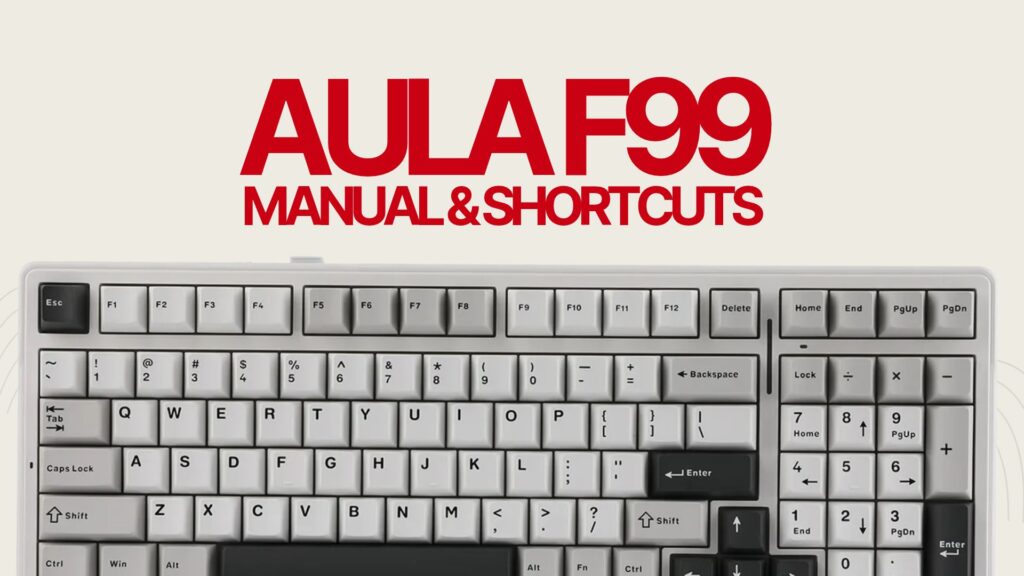
Need to pair your AULA F99, change its RGB lighting, check the battery, find Print Screen or reset a key that stopped working? This reference brings together the standard F99’s shortcuts, connection instructions and official support links in one place.
- AULA F99 manual PDF and official support
- AULA F99 connection modes explained
- Complete AULA F99 FN shortcut keys
- Connection and system shortcuts
- RGB backlight and side light bar shortcuts
- Windows, navigation and utility shortcuts
- How to connect AULA F99 using Bluetooth
- How to connect the AULA F99 2.4 GHz receiver
- AULA F99 RGB lighting controls
- How to check the AULA F99 battery level
- AULA F99 software and driver download
- How to factory reset the AULA F99
- AULA F99 troubleshooting: common problems
- AULA F99 frequently asked questions
Which keyboard is this for? This guide covers the standard AULA F99. F99 Pro and later hardware revisions may have different controls. Check the model label underneath your keyboard before following a manual or installing software. Instructions below are researched from documentation, not claimed as hands-on tests.
Need to pair your AULA F99, change its RGB lighting, check the battery, find Print Screen or reset a key that stopped working? This reference brings together the standard F99’s shortcuts, connection instructions and official support links in one place.
Which keyboard is this for? This guide covers the standard AULA F99. F99 Pro and later hardware revisions may have different controls. Check the model label underneath your keyboard before following a manual or installing software. Instructions below are researched from documentation, not claimed as hands-on tests.
AULA F99 manual PDF and official support
The easiest way to confirm the exact controls for your board is to start with the manufacturer’s documentation. AULA hosts a model-specific F99 manual page and an older F99 PDF. If a shortcut on your keyboard behaves differently, follow the printed function card that shipped with your particular revision.
Official AULA F99 manual page | Official F99 PDF
For a current manufacturer troubleshooting reference, use the AULA F99 FAQ. This matters because reset timing differs between the older PDF and newer support guidance.
AULA F99 connection modes explained
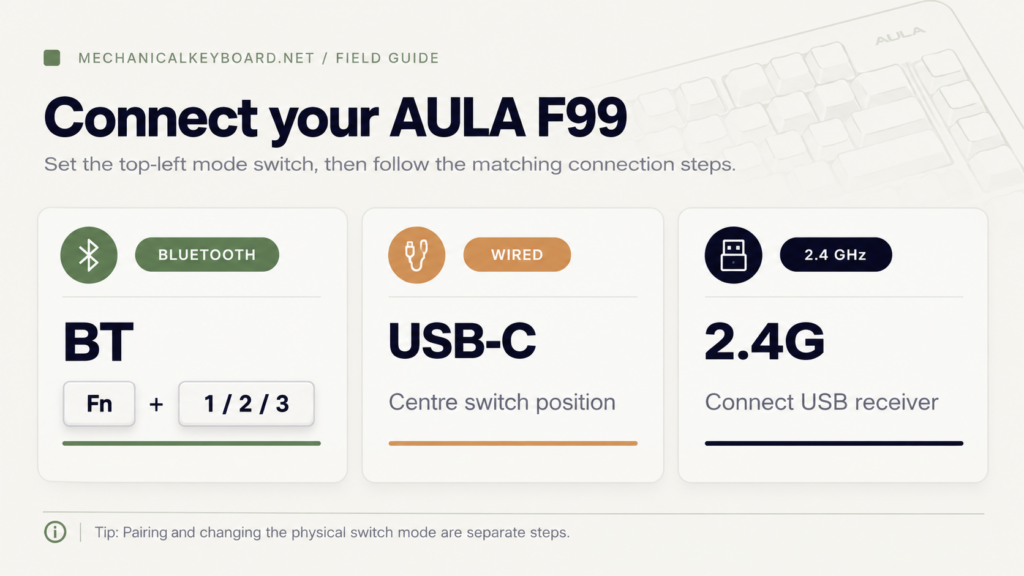
The standard AULA F99 has a three-position connection selector at the upper-left edge. The switch position determines whether you are connecting by Bluetooth, the USB receiver, or a wired USB-C cable. Pressing an FN shortcut does not replace setting this physical switch correctly.
Complete AULA F99 FN shortcut keys
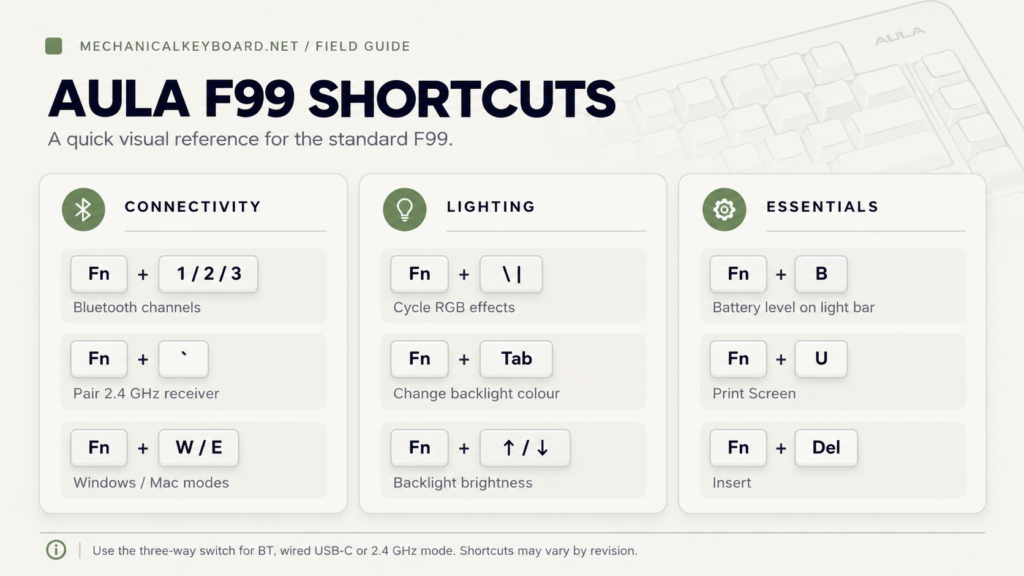
These are the standard F99 shortcut combinations shown in the English manual. The right-side modifier descriptions refer to keys on the right of the keyboard, not the similarly named left-side modifiers. The backslash/pipe key appears as \ | on many layouts.
Connection and system shortcuts
RGB backlight and side light bar shortcuts
Windows, navigation and utility shortcuts
F1-F12 behavior: In Windows mode, the F-row acts as standard function keys, with Fn providing secondary media actions. In Mac, iOS and Android modes, media functions can be the default and Fn may access F1-F12. Check the current OS mode if volume or brightness keys seem reversed.
How to connect AULA F99 using Bluetooth
- Move the physical connection switch to BT.
- Choose a Bluetooth channel. Hold Fn + 1 for around 3 seconds, until its indicator flashes quickly. For a second or third device, use Fn + 2 or Fn + 3.
- Open Bluetooth settings on your computer, phone or tablet.
- Select the matching keyboard entry. The original manual lists AULA-F99 3.0 and AULA-F99 5.0 as possible names.
- Wait for the connection to complete. The indicator briefly lights to confirm a successful pairing.
How to switch between Bluetooth devices
After pairing multiple devices, leave the connection switch on BT and briefly press Fn + 1, 2 or 3 to return to the saved channel. A short press switches channels; holding the combination is for pairing.
Bluetooth not showing up? Double-check the BT switch, make sure the selected channel is in pairing mode with a fast-blinking light, remove a failed old pairing from the host’s Bluetooth list and repeat the process.
How to connect the AULA F99 2.4 GHz receiver
The receiver is factory-paired in the original manual, so you normally only need to set the connection switch to 2.4G and plug the correct receiver into your computer.
If the dongle no longer connects:
- Unplug the receiver from the computer.
- Move the keyboard switch to 2.4G.
- Hold Fn + ` ~ for about 3 seconds until the cyan indicator flashes rapidly.
- With the keyboard close to your computer, insert the USB receiver. The indicator should briefly stay illuminated when pairing succeeds.
AULA recommends trying a USB 2.0 port and avoiding nearby wireless receivers or metal-bodied hubs when the connection is unreliable. These are interference-reduction troubleshooting steps, not a guarantee that every connection fault is caused by USB 3.0.
AULA F99 RGB lighting controls
There are two lighting areas to keep distinct: the main keyboard backlight and the ambient light bar. If the wrong part changes colour, use the shortcut for the correct lighting area.
Change the keyboard RGB effect or colour
- Press Fn + \ | to cycle the backlight effect.
- Press Fn + Tab to change the effect colour where supported.
- Use Fn + ↑ or ↓ to adjust brightness; use Fn + → or ← for speed.
Change the ambient light bar
Use Fn + Right Shift to change its mode, Fn + / ? for colour, Fn + Right Alt for brightness and Fn + Right Ctrl for speed.
Some effects may not use a selectable static colour. If a colour shortcut appears to have no effect, switch to a different lighting effect and try again.
How to check the AULA F99 battery level
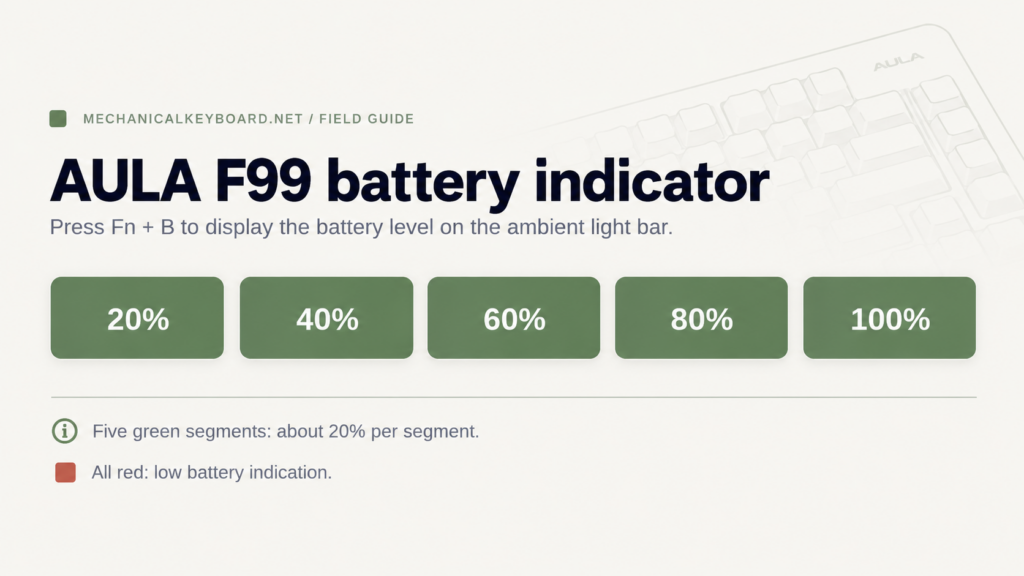
Press Fn + B. On the original F99 manual, the ambient light bar displays the battery status. Five green sections represent roughly 20% each, and an all-red indication means the charge is low. The segments are an approximate indicator rather than a precise numeric percentage.
How to charge the AULA F99 safely
Connect the keyboard to a computer USB port using the original USB-C cable. AULA specifically advises against fast-charging adapters. Lowering the backlight brightness or turning it off may also reduce battery drain during wireless use.
Battery runtime depends on lighting, connection mode and usage. Published runtime figures should not be treated as independently measured results from MechanicalKeyboard.net.
AULA F99 software and driver download
AULA’s official download catalogue lists an F99 Windows driver. It also has a separate F99/F99 Pro listing, so check the model label and download description before installing either package.
Official AULA driver downloads
- Open the manufacturer download page.
- Search for F99 and locate the entry labelled F99, rather than downloading a file for a different model.
- Read the operating-system label before downloading; the currently listed dedicated driver is marked Windows.
- Connect the keyboard by USB-C if the installer or configuration software requires a direct device connection.
Important: Do not install F99 Pro-specific software or firmware onto the standard F99 unless the manufacturer explicitly states that it supports your exact hardware revision. Do not assume the Windows driver offers a macOS version.
How to factory reset the AULA F99
The reset shortcut is Fn + Esc, but the manufacturer documentation does not give the same hold duration everywhere:
If you are unsure which revision you have, start with the function card supplied with your board. A reset may restore custom settings. The older manual says saved Bluetooth pairing information is retained, so do not assume a reset will erase your paired devices.
AULA F99 troubleshooting: common problems
My AULA F99 is not typing
Check the connection selector first. Try wired USB-C mode using a known working data cable and a direct computer port. Charge the keyboard, then check whether the selected system mode matches your device. If the problem affects only one key, the switch itself may need cleaning or replacement.
The Windows key stopped working
Switch to Windows mode using Fn + W, then try Fn + Left Win to disable the Windows-key lock. If Alt and Win appear swapped, check that you have not selected Mac mode with Fn + E.
The AULA F99 keeps disconnecting wirelessly
Recharge the battery and re-pair the relevant connection. In 2.4 GHz mode, move the receiver away from metal hubs and competing wireless dongles. In Bluetooth mode, remove stale entries on the computer and pair the channel again.
The RGB lights are not working
Increase brightness with Fn + ↑. Cycle effects using Fn + \ |. Check battery level, then test the board over USB-C. Keep keyboard backlighting controls separate from the ambient light bar controls.
A key types twice or repeats unexpectedly
If only one switch is affected, clean or swap it with a known good replacement where appropriate. You can use our Keyboard Chatter Test to identify repeat presses while typing. A browser test can reveal symptoms, but it cannot determine whether the root cause is a failing switch, wireless interference or software.
Print Screen or Insert is missing
Use Fn + U for Print Screen and Fn + Delete for Insert. This is normal on compact keyboards where navigation functions share keys.
AULA F99 frequently asked questions
What is the AULA F99 Bluetooth pairing shortcut?
Set the physical switch to BT and hold Fn + 1, 2 or 3 for about 3 seconds to pair a device with that Bluetooth slot.
How do I check the AULA F99 battery percentage?
Press Fn + B to display its approximate battery level on the ambient light bar. Each of the five green segments represents around 20%.
How do I use Print Screen on the AULA F99?
Press Fn + U. You can also use your operating system’s screenshot utility where supported.
What is the AULA F99 reset shortcut?
Use Fn + Esc. The older PDF says 3 seconds, whereas the later AULA support FAQ specifies 5 seconds. Refer to your keyboard revision’s documentation.
Can the AULA F99 connect to a Mac?
The standard F99 manual documents a Mac system mode selected with Fn + E. That does not mean the Windows-only driver listed on AULA’s download page will run on macOS.
Is the AULA F99 manual the same as the F99 Pro manual?
No. Although some shortcuts overlap, the models and revisions may differ. Identify your exact board before installing software or following variant-specific instructions.